Product photo editor
Start with a product photo
Upload a product photo in Batch, then select it to open the editor. Crop, resize, and edit backgrounds free, without signing up. Photos are processed in your browser.
Upload a product photoEdit one SKU photo predictably
Free, with no sign-up required. Open a product image from the batch uploader after an on-device AI model removes its background, then adjust the background, size, position, or crop. Everything runs in your browser, and your product image never leaves your device.
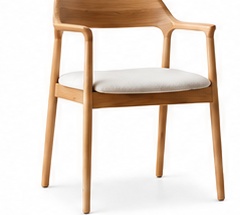
Result preview
An on-device AI model removes the background during the shared batch upload flow. The editor then applies browser-based canvas edits. These steps do not call a cloud AI generation service or consume AI credits.
01
Follow the workflow
- 01
Choose an uploaded SKU image
Open a ready image from the batch editor and inspect its current status.
- 02
Open an editing control
Inspect background, resize, position, or crop settings for the active image.
- 03
Compare the visible states
Toggle original and edited views while adjusting canvas zoom in the workspace.
- 04
Apply or discard the draft
Choose Apply to save the current edits, or discard the draft and return to the previous values.
02
What you get
- Inspect the active SKU image and its ready, processing, failed, or low-resolution state.
- Preview background, aspect, fit, position, zoom, padding, rotation, and flip controls.
- Compare original and edited states before applying a draft.
03
Limits to know before you start
- An on-device AI model removes the background during the shared batch upload flow. The editor then applies browser-based canvas edits. These steps do not call a cloud AI generation service or consume AI credits.
- Product images uploaded through the shared batch uploader have their backgrounds removed locally in the browser before they enter the editor; background replacement is disabled only for built-in examples without a cutout mask.
- Local cutout results can need review around complex or translucent edges.
- PNG preserves transparency; JPG export composites a filled background.
04
Common questions
Does background mode remove the original background?
The shared upload flow removes the background locally in your browser before the image enters the editor. Background mode then composites a transparent, white, or solid-color result; only built-in examples without a cutout mask keep the control disabled.
Where do the images come from?
Upload a product image through the batch product photo editor. Its background is removed locally in your browser before you adjust the background, size, position, or crop here.